Prefer to watch? The full video walkthrough is above, and each step below links to its part of the video.
What you'll need
An Android phone with Kit Check installed (free). Setting up your first lists takes a couple of minutes.
Pick your first lists
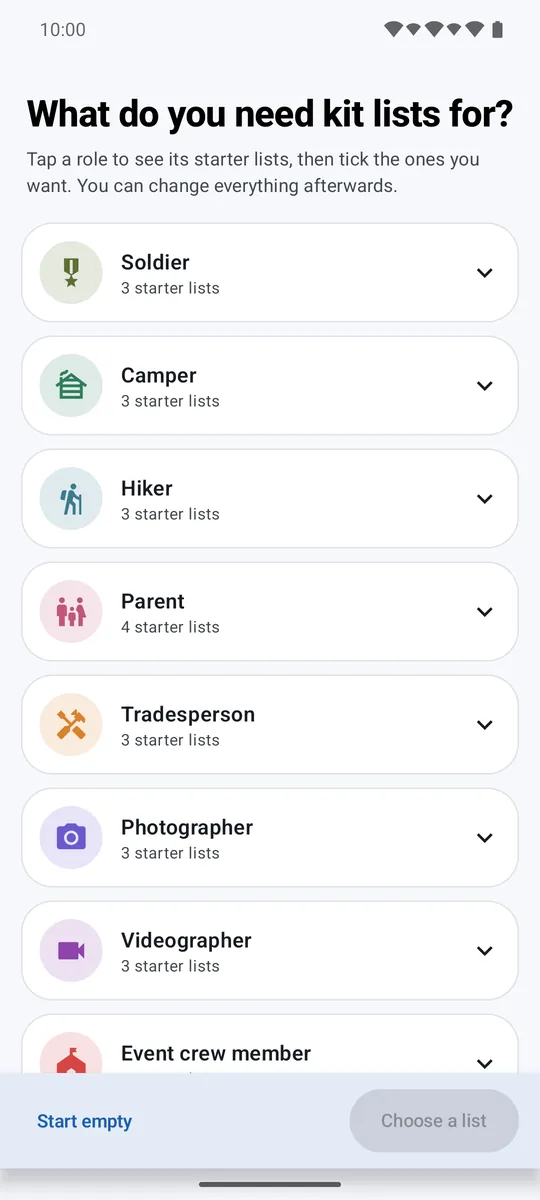
The first time you open Kit Check, tap a role, tick the ready-made lists you want, and tap Create. ▶ Watch this part (0:13)
The first time you open Kit Check there's a short tour. Read it, or tap Skip.
- Tap anything you do, such as Camper, Parent or Traveller, to see its ready-made lists.
- Tick every list you want. You can mix lists from different roles.
- Tap Create. If two lists share an item, tap Yes, use existing so it's one item that updates everywhere.
Open a list
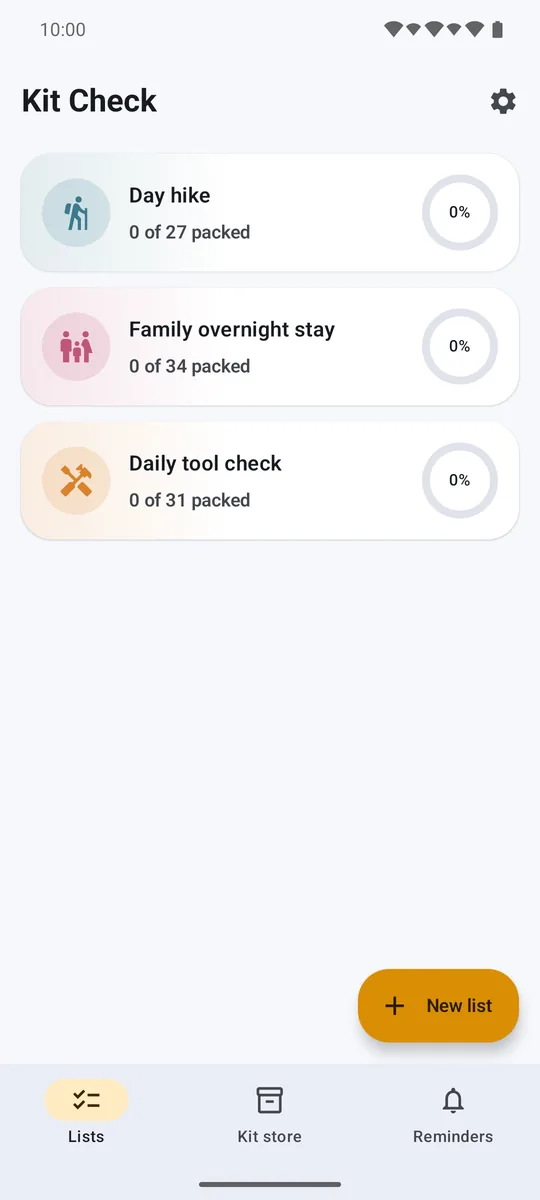
Your lists are on the home screen, each with a ring that fills as you pack. Tap a card to open the list. ▶ Watch this part (1:27)
Every list shows how much is packed, with a ring that fills as you go. Tap a card to open it.
To start another list at any time, tap New list.
Tick off your kit as you pack
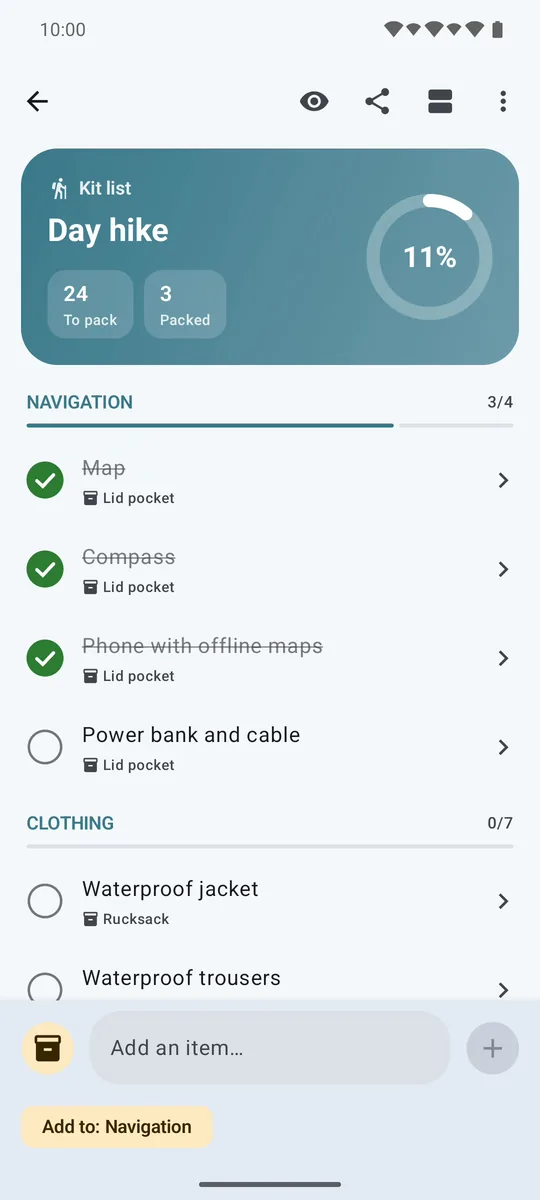
Tap the circle next to an item to pack it. Each section and the whole list show how close you are. ▶ Watch this part (1:42)
- Tap the circle next to an item as it goes in the bag. Tap again to unpack it.
- Each section shows how many of its items are packed, and the top card counts what's left for the whole list.
- Tap the eye at the top to hide everything you've packed, so only what's left is on screen.
- Tap the group button to sort the list by category, pack location, storage location or state.
Add your own kit
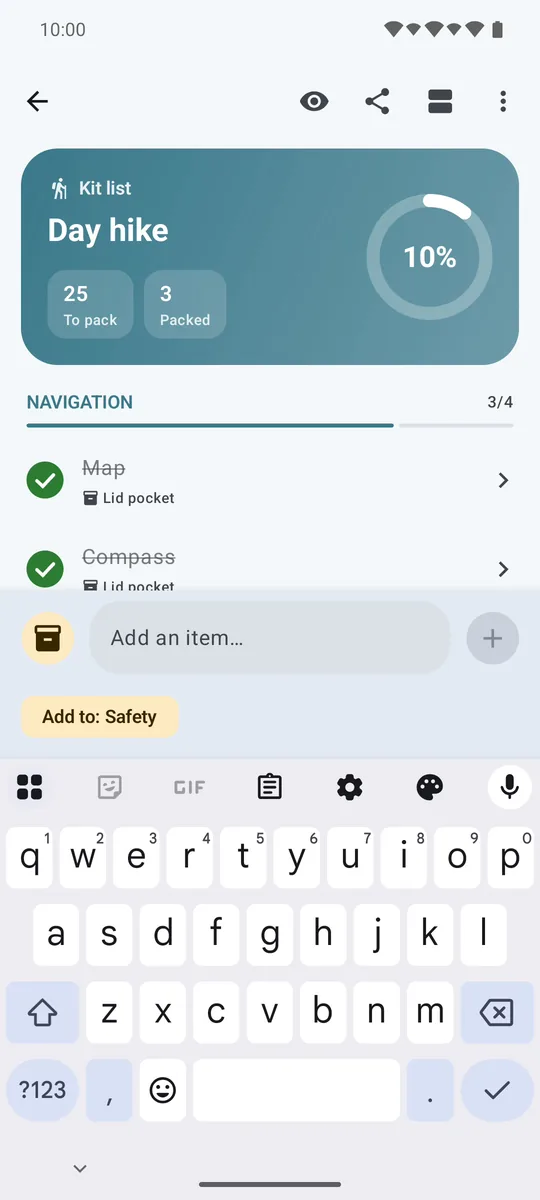
Type an item in the add bar at the bottom and tap Done, or tap the store button to add kit you already own. ▶ Watch this part (2:36)
- Tap the chip under the add bar to choose which section a new item goes into.
- Type the item's name in Add an item and tap Done. It's added to the list and to your kit store.
- To add kit you already own, tap the store button, search, tick what you want and tap Add.
Add item details
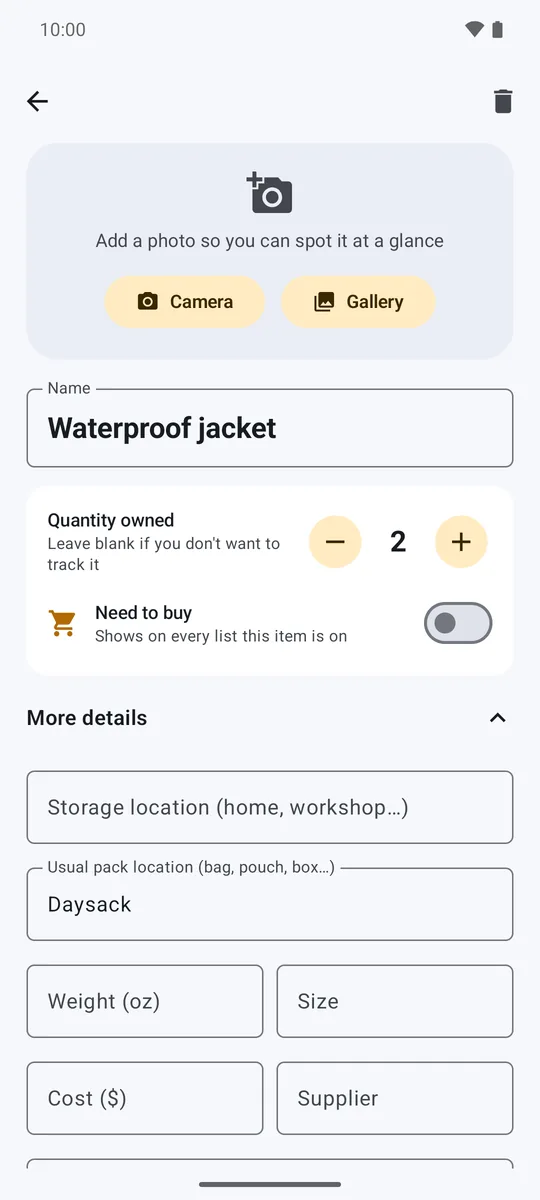
Tap the arrow on any item to record how many you own, where it's kept, its weight, cost, serial number and notes. ▶ Watch this part (3:26)
- Tap the arrow on any item to open its details.
- Use plus and minus to record how many you own. Leave it blank if you don't want to track it.
- Switch on Need to buy and the item is flagged on every list it's on.
- Open More details for storage and pack locations, weight, size, cost, supplier, serial number and notes.
Pack for the whole family
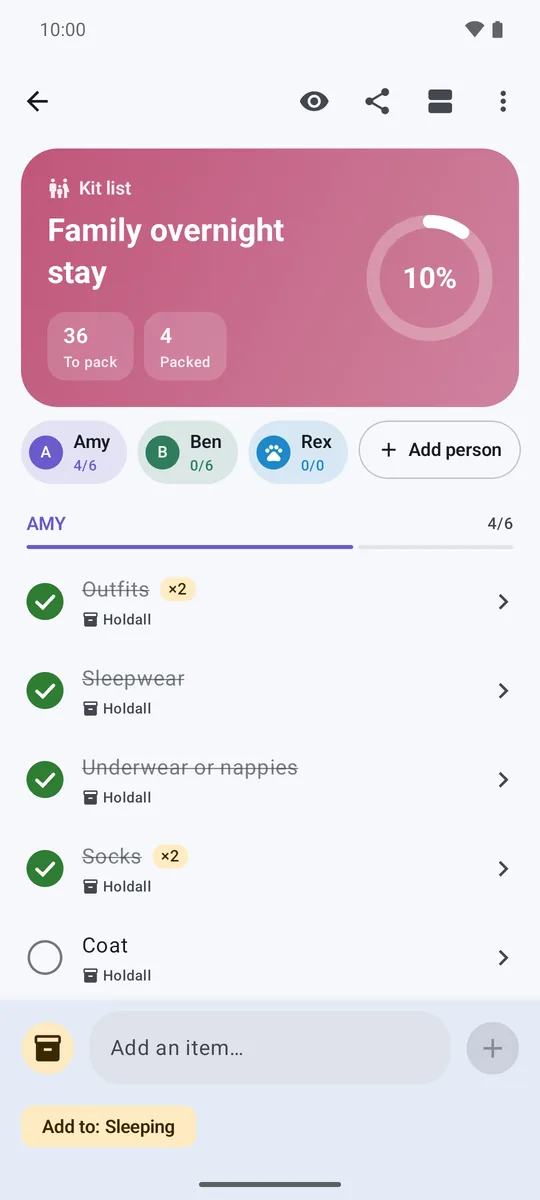
Tap Add person on a list to add the people and pets you're packing for. Each gets their own section and progress. ▶ Watch this part (3:59)
- On a family list, tap Add person, type a name and tap Done. Switch on This is a pet for a pet.
- Each person and pet gets a chip showing their own progress.
- Group the list by person to pack each person's kit in turn.
Switch on list extras
In a list's menu, open List extras to turn on people and pets, handover checks, stock levels or check-out and check-in. ▶ Watch this part (5:00)
Open the menu at the top of a list and tap List extras. Turn on only what you need:
- People and pets: a section and progress for everyone.
- Check-out and check-in: mark kit out on a job and tick it back in, so every tool comes home.
- Handover check: a quick check with who checked it and when.
- Stock levels: see what needs restocking.
Check kit out and back in
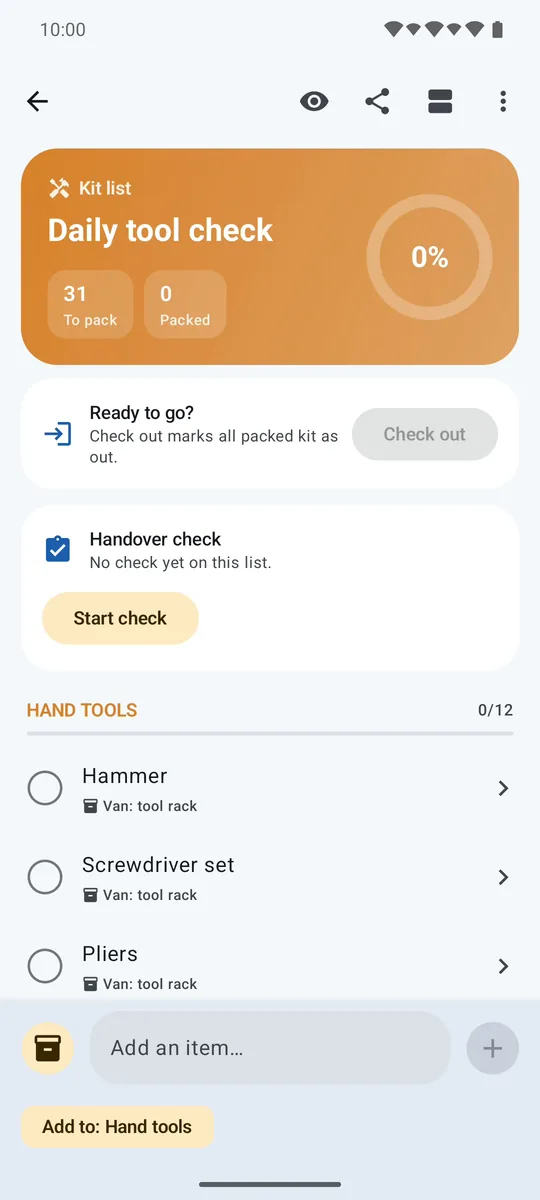
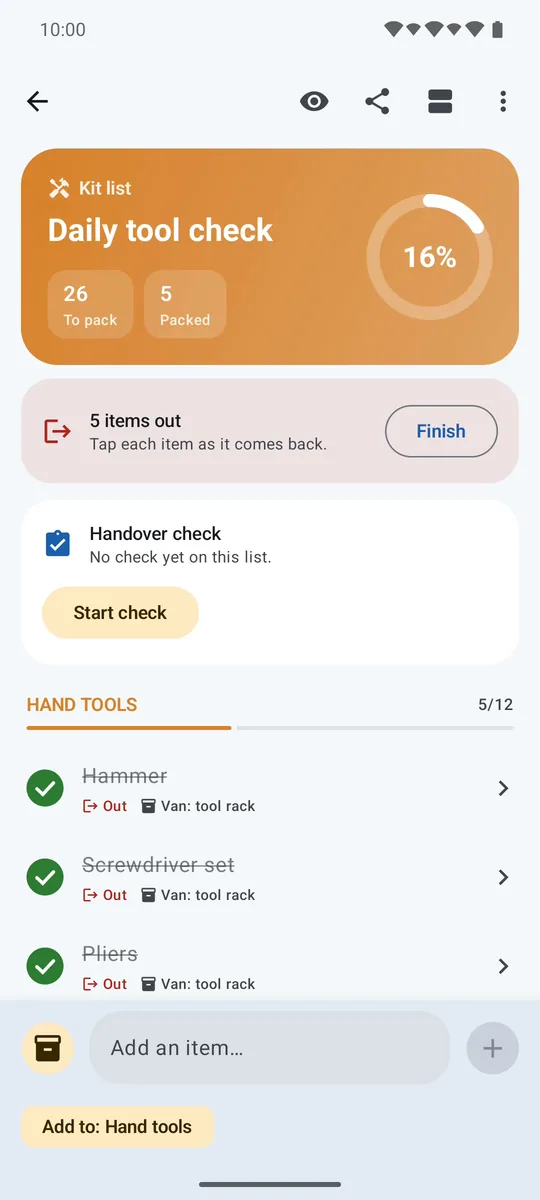
Tap Check out to mark everything packed as out, tap each item as it comes back, then tap Finish. ▶ Watch this part (5:21)
- Tap Check out and everything packed is marked as out.
- As each item comes back, tap it. It changes from Out to Back.
- Tap Finish when you're done. If anything is still out, Kit Check warns you first.
Run a handover check
Tap Start check, enter your name, mark anything missing or defective, and tap Save check. ▶ Watch this part (5:52)
- Tap Start check and enter your name.
- Everything starts as present. Mark items Missing or Defective and add a note.
- Tap Save check. The list shows who checked it, when, and what was wrong. Tap Share to send it on.
Find anything in your kit store
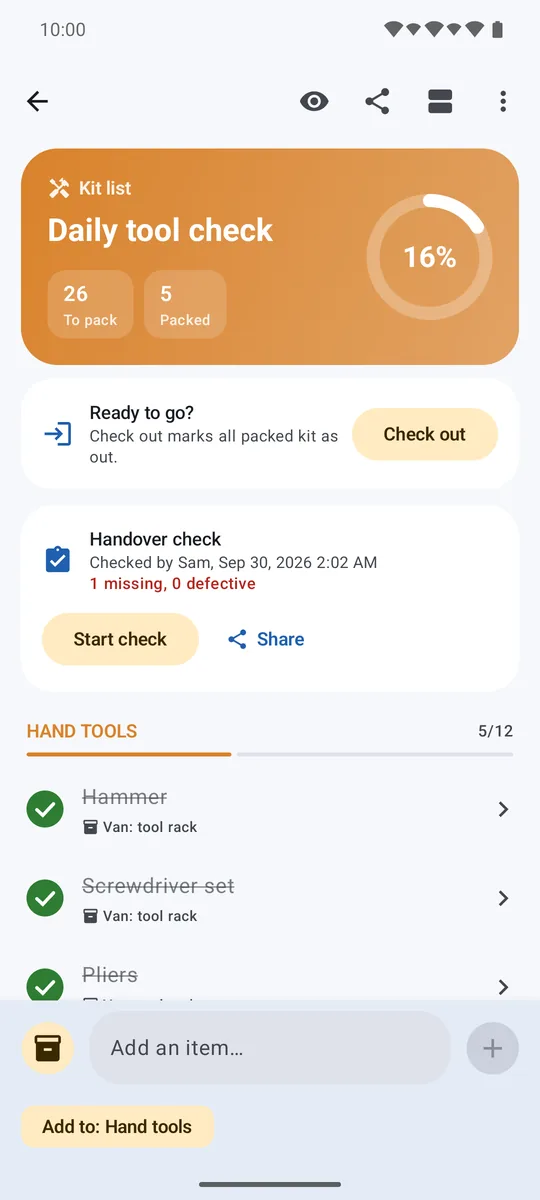
The Kit store tab holds everything you own. Search it by name, serial number or where it's kept. ▶ Watch this part (6:37)
Open the Kit store tab to see every item you own, and how many lists each one is on. Type in the search box to find anything by name, serial number or where it's kept.
Get ready for next time
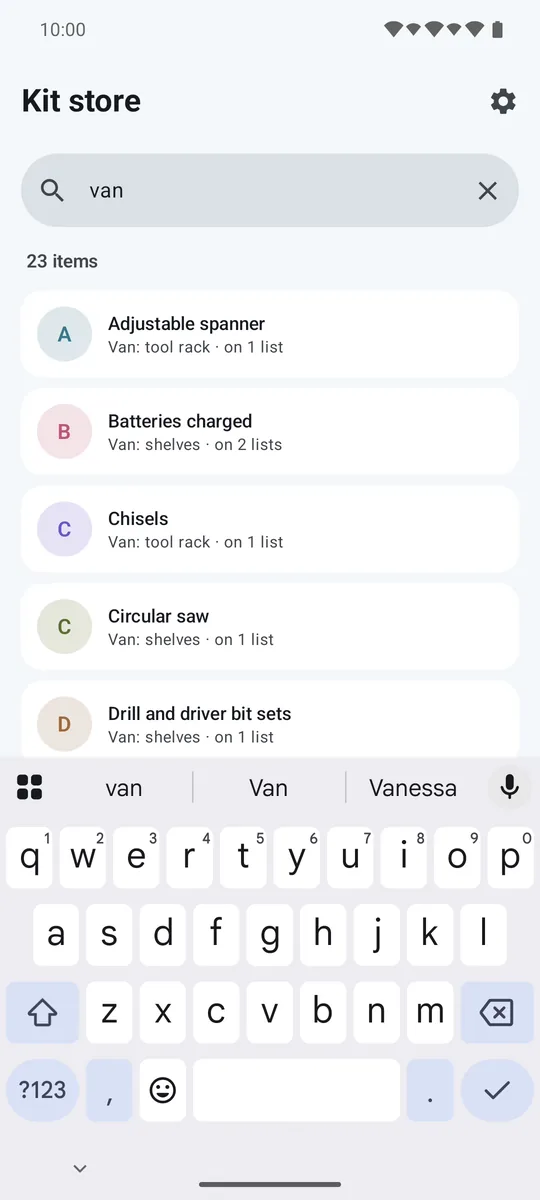
Back home? Open the list's menu and tap Reset for next trip. Everything is unpacked, with Undo if you need it. ▶ Watch this part (6:59)
Open the menu on a list and tap Reset for next trip. Everything is unpacked, ready for next time. Tap Undo if you reset by mistake.
Choose light or dark
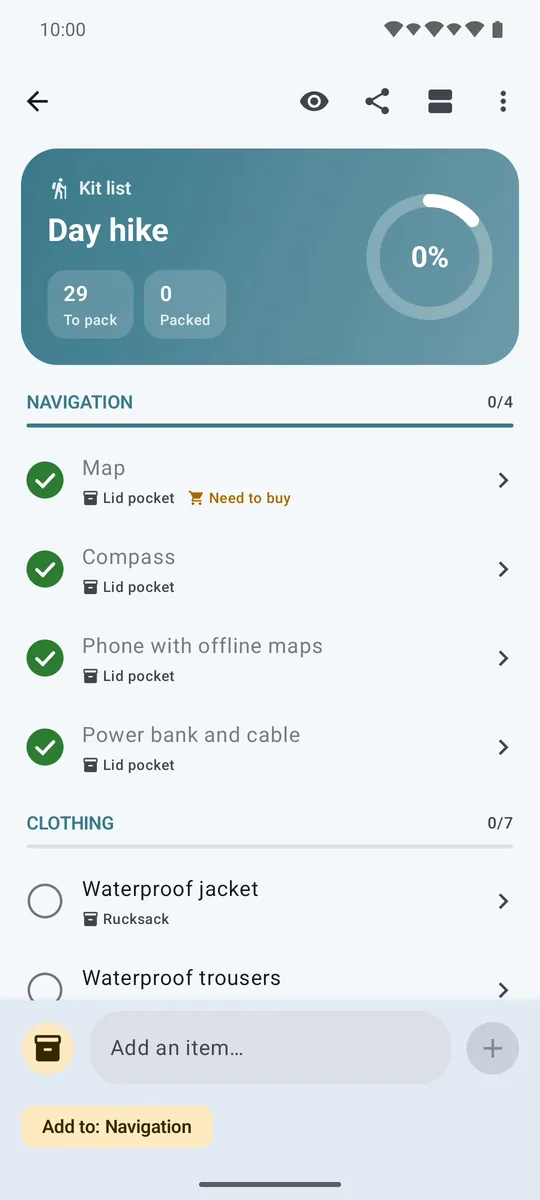
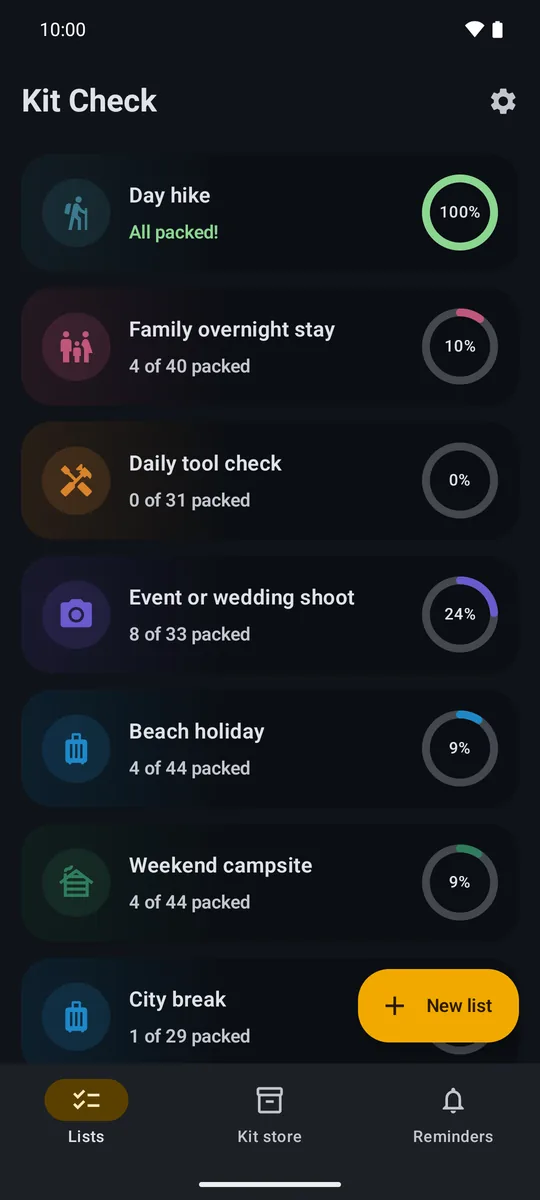
Tap the gear on the Lists screen to open Settings, then pick Light, Dark or System under Theme. ▶ Watch this part (7:12)
Tap the gear on the Lists screen to open Settings, then choose Light, Dark or System under Theme. You can also choose weight units and currency there.
Tips
- One kit store. Add kit once and use it on every list. Change it once and every list updates.
- Reset, don't rebuild. After a trip, use Reset for next trip and your list is ready to use again.
- Pack by location. Group by pack location to fill one bag, pocket or box at a time.
- Works fully offline. No account, no adverts and no signal needed. Your lists stay on your phone.
Have a question that isn't covered here? See the Kit Check FAQ or get in touch.