Prefer to watch? The full video tutorial is above, and each step below links to its part of the video.
What you'll need
An Android phone with Route Card installed (free), your map, and the grid references of your start point, each waypoint and your finish. The whole process takes about ten minutes the first time, and a couple of minutes after that.
Choose your grid system and bearing unit
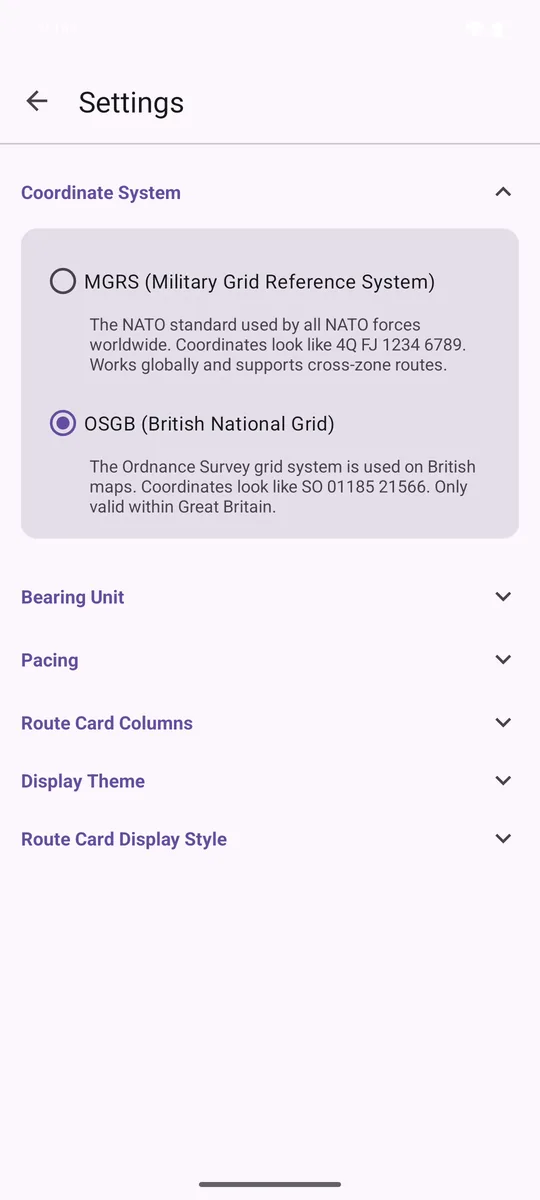
In Settings, choose MGRS or OS National Grid (OSGB), and NATO mils or degrees to match your compass. ▶ Watch this part (0:12)
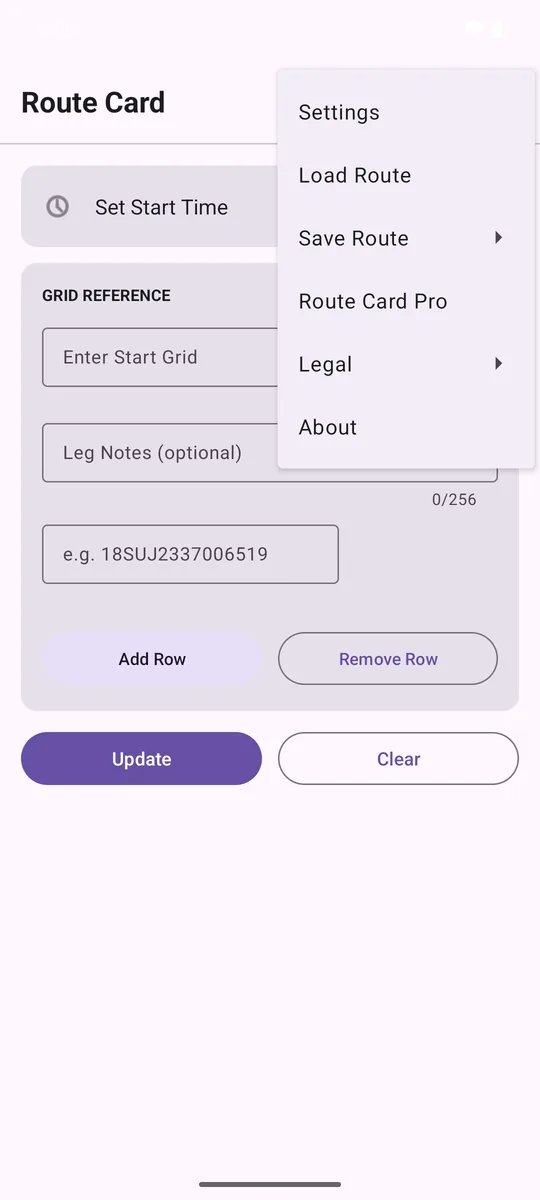
- On the main screen, tap the three dots in the top-right corner and choose Settings.
- Open Coordinate System and choose:
- MGRS: the NATO standard. Works worldwide, including routes that cross UTM zones. Looks like
30UVC66944690. - OSGB: the OS National Grid printed on British maps. Valid within Great Britain. Looks like
SN98202030.
- MGRS: the NATO standard. Works worldwide, including routes that cross UTM zones. Looks like
- Open Bearing Unit and choose NATO Mils (0–6400) or Degrees (0–360°).
Set your pacing count
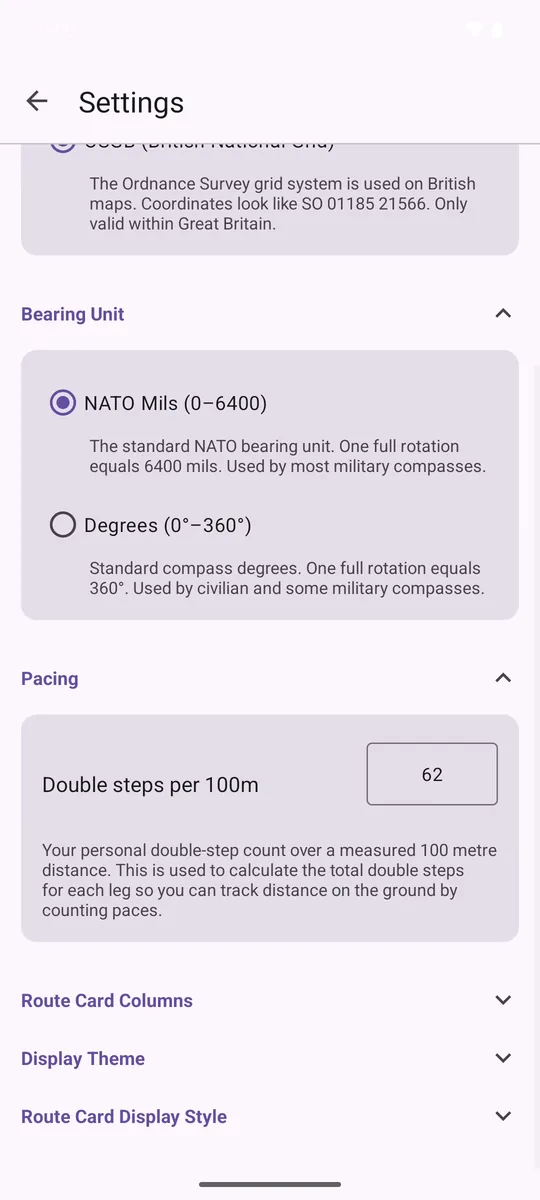
Count your double steps over a measured 100 metres and enter the number in Settings, under Pacing. ▶ Watch this part (0:50)
Route Card uses your pacing count to tell you how many double steps each leg will take, so you can track distance on the ground without GPS.
- Walk a measured 100 metres and count your double steps: one every time the same foot lands.
- In Settings, open Pacing and enter the number in Double steps per 100m.
Enter your grid references
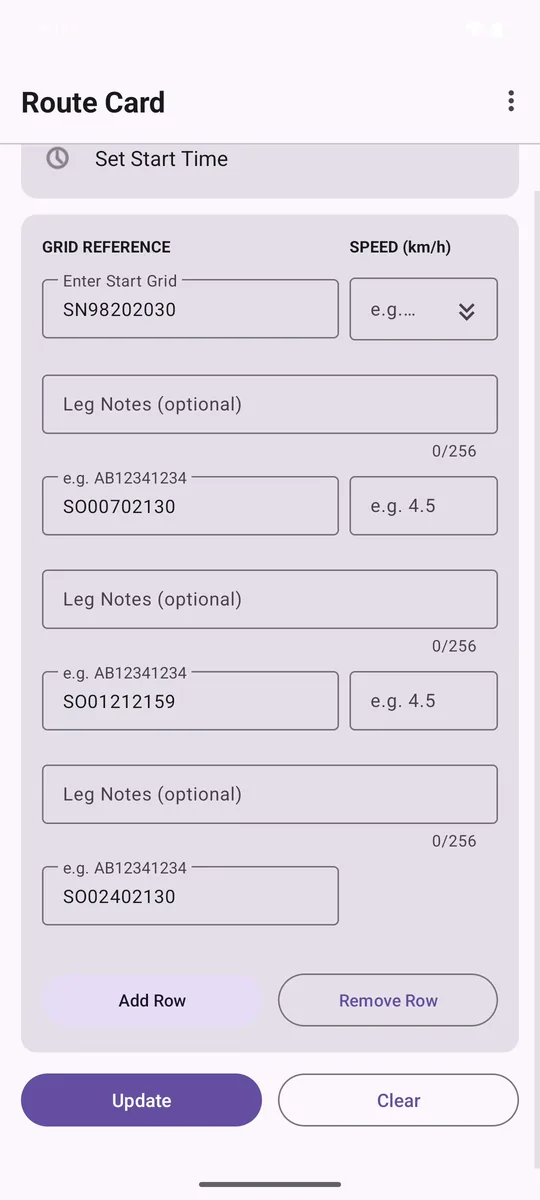
Type your start grid reference, then each waypoint. Tap Add Row for every extra point on the route. ▶ Watch this part (1:06)
Go back to the main screen. Each pair of points makes one leg of your route.
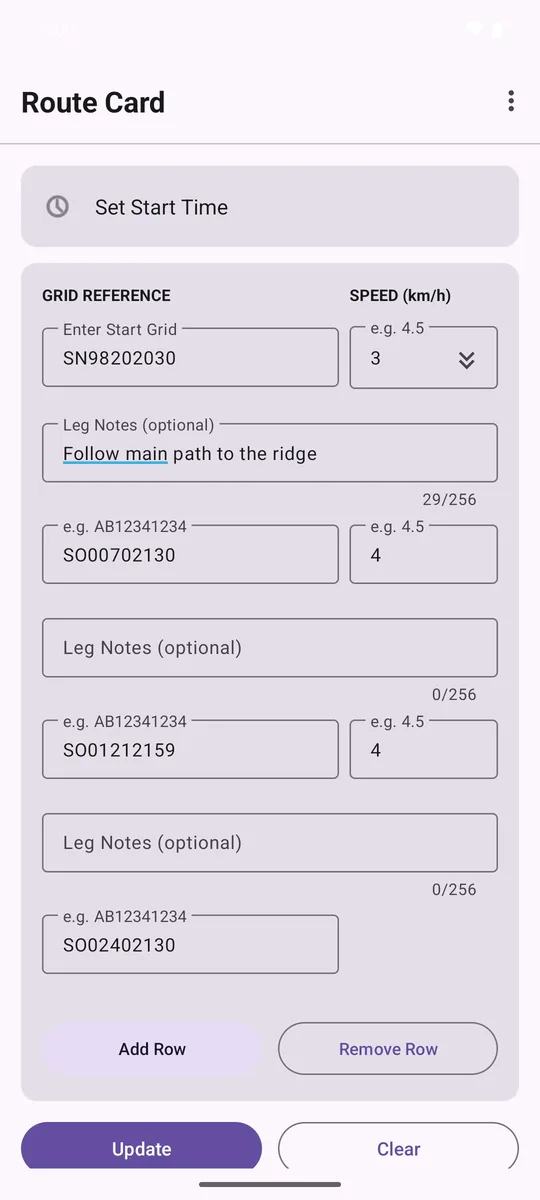
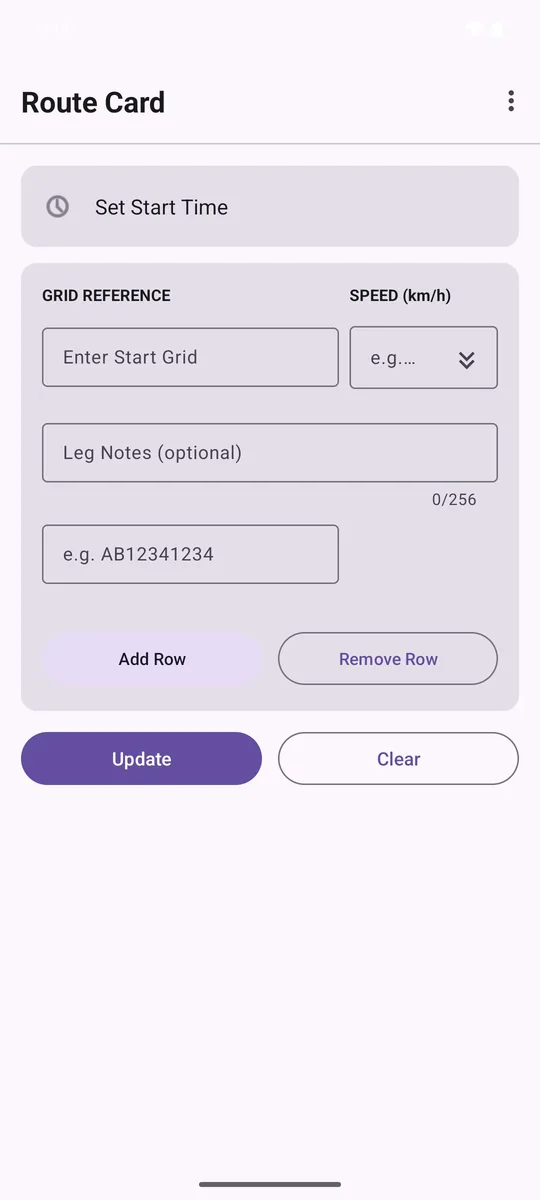
- Tap Enter Start Grid and type the grid reference of your start point. Spaces are optional.
- Type your next waypoint in the second box.
- Tap Add Row for every extra waypoint, and type each grid reference in turn.
- Made a mistake? Remove Row deletes the last row. You always keep at least two: a start and a finish.
| Point | OS grid reference |
|---|---|
| Storey Arms (start) | SN 9820 2030 |
| Corn Du | SO 0070 2130 |
| Pen y Fan | SO 0121 2159 |
| Cribyn (finish) | SO 0240 2130 |
Set your speeds
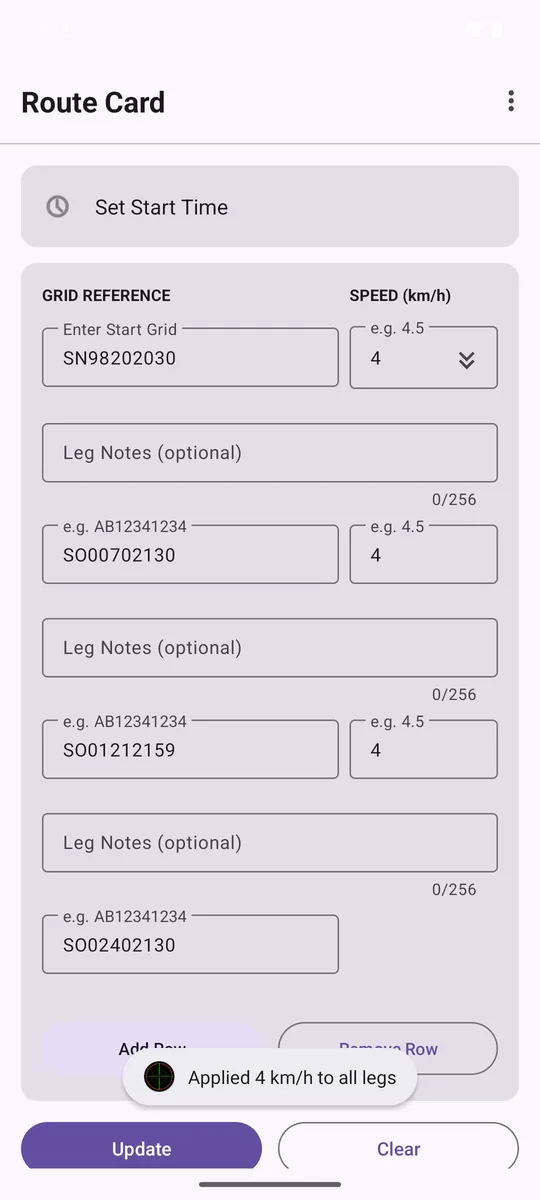
Enter a speed in km/h for leg 1, tap the double-arrow icon to copy it to every leg, then adjust any leg to suit the ground. ▶ Watch this part (1:49)
Speeds are in km/h and set the time for each leg and your ETAs.
- Type a speed in the first leg's Speed box.
- Tap the double-arrow icon beside it to apply that speed to every leg in one go.
- Adjust any leg to suit the ground. In this route the first leg is a long climb, so it's set to 3 km/h and the rest stay at 4 km/h.
Add leg notes
Optionally add notes to any leg, such as landmarks, obstacles, hazards or RV details. ▶ Watch this part (2:18)
Notes are optional and are printed on your route card with the leg they belong to.
- Tap Leg Notes under any leg and type landmarks, obstacles, hazards, RV details or anything else useful, up to 256 characters.
Set a start time
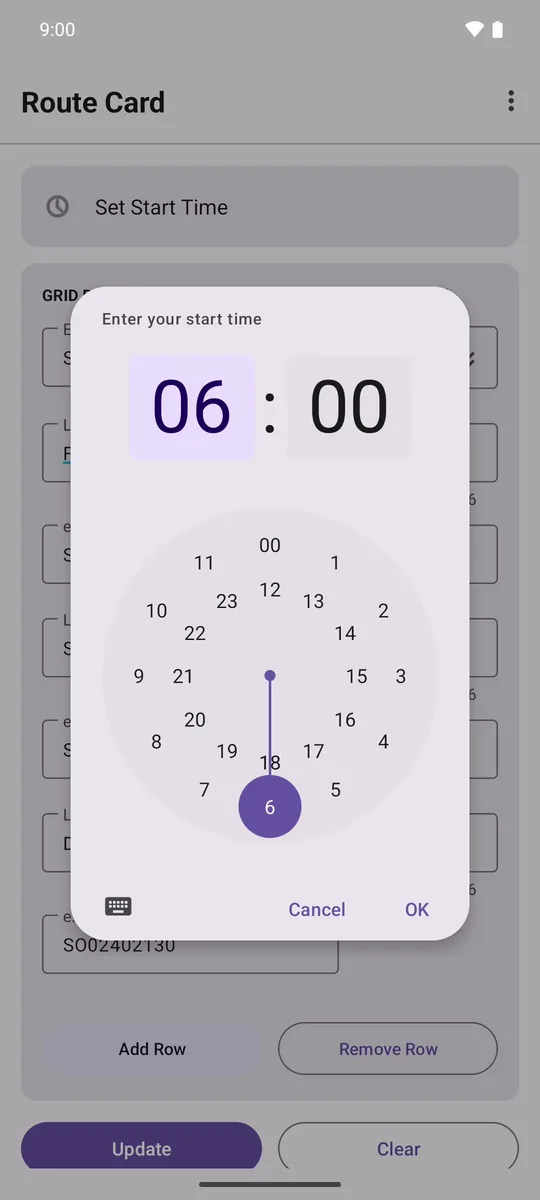
Tap Set Start Time and choose when you step off, so your route card shows an ETA for every waypoint. ▶ Watch this part (2:32)
With a start time, your route card shows an ETA for every waypoint: useful for reporting timings, or for letting someone know when to expect you.
- Tap Set Start Time at the top of the main screen.
- Choose the hour, then the minutes, and tap OK.
- To remove it, tap the X beside the time.
Calculate your route card
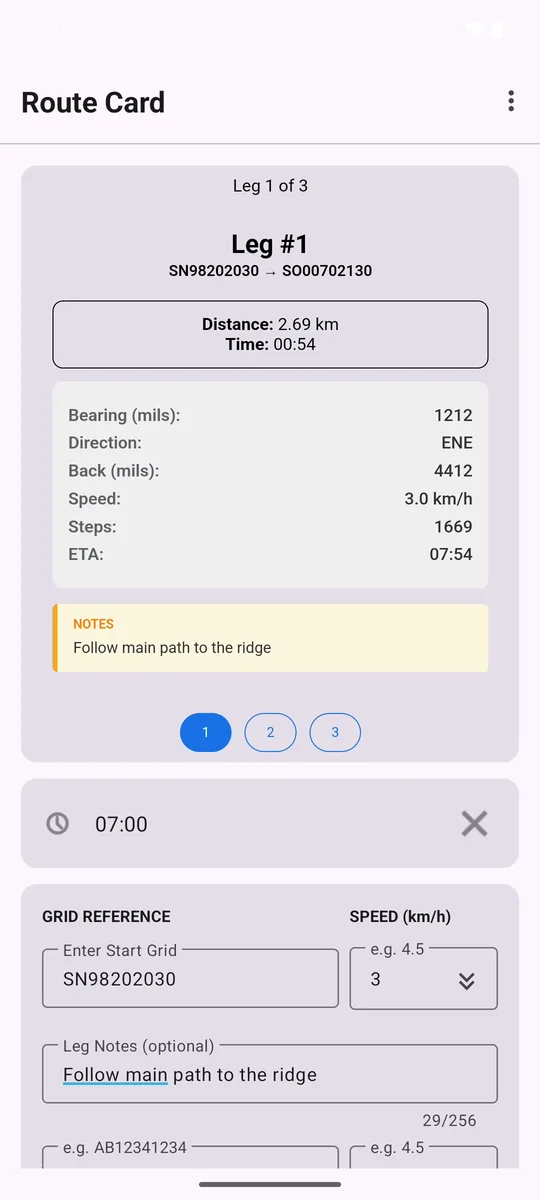
Tap Update. Route Card works out every leg and shows your route card at the top of the screen. ▶ Watch this part (2:46)
Scroll down and tap Update. Route Card calculates every leg and shows your route card at the top of the screen.
Change anything later, such as a grid, a speed or the start time, and tap Update again to recalculate.
Read your route card
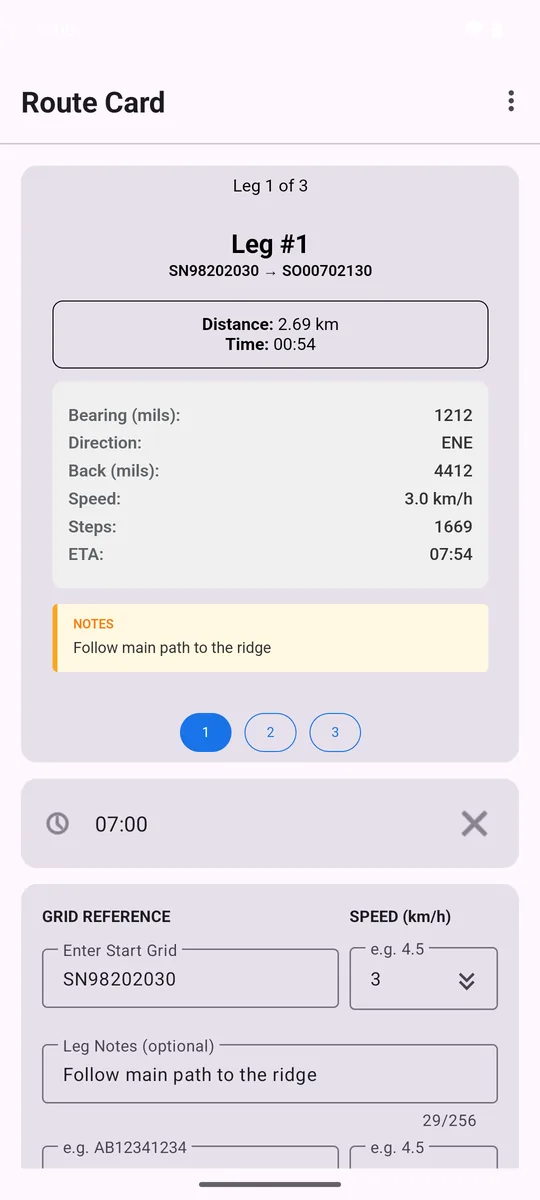
Each leg shows distance, time, bearing, direction, back bearing, speed, double steps, ETA and notes. Tap the numbered buttons to move between legs. ▶ Watch this part (2:58)
Each leg shows everything you need to walk it. Tap the numbered buttons at the bottom of the card to move between legs.
| Field | What it means |
|---|---|
| Distance | Straight-line distance for the leg, in kilometres. |
| Time | How long the leg should take at your speed (HH:MM). |
| Bearing | The forward bearing to set on your compass, in mils or degrees. |
| Direction | The general heading as a 16-point compass direction, such as ENE. |
| Back bearing | The reverse bearing. Turn round and sight back along it to confirm your last position. |
| Speed | The speed you set for the leg, in km/h. |
| Steps | Double steps for the leg, from your pacing count. |
| ETA | Your arrival time at the next point. Shown only when a start time is set. |
| Notes | Your leg notes. |
Change the display style
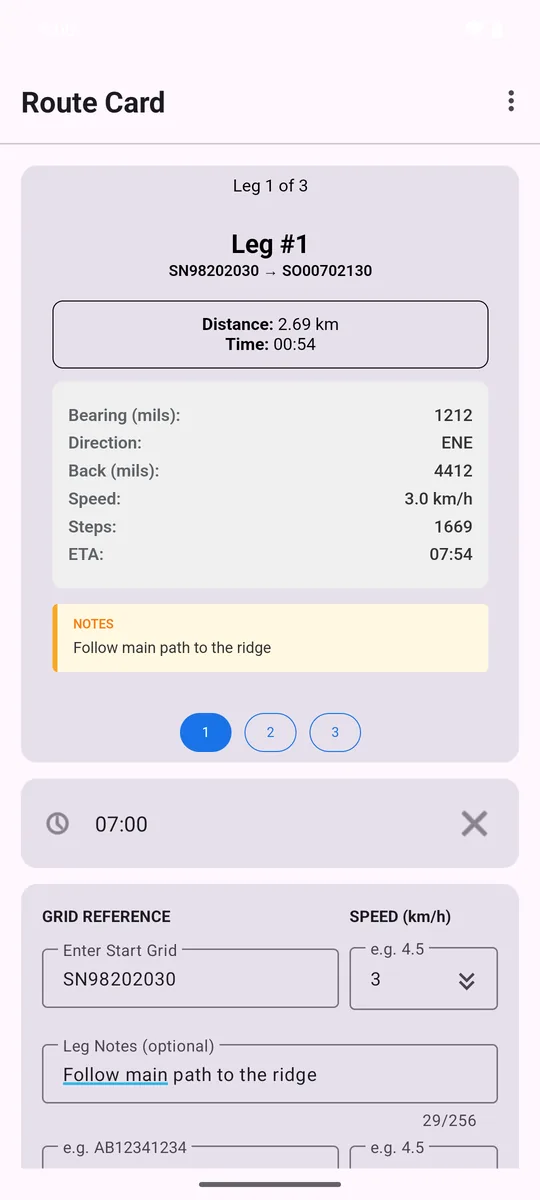
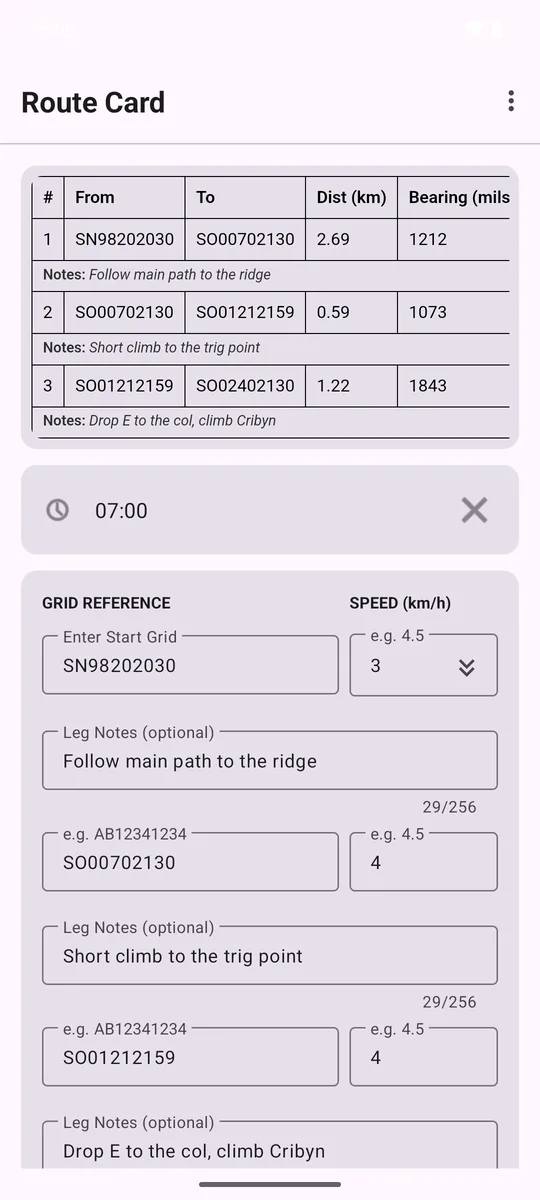
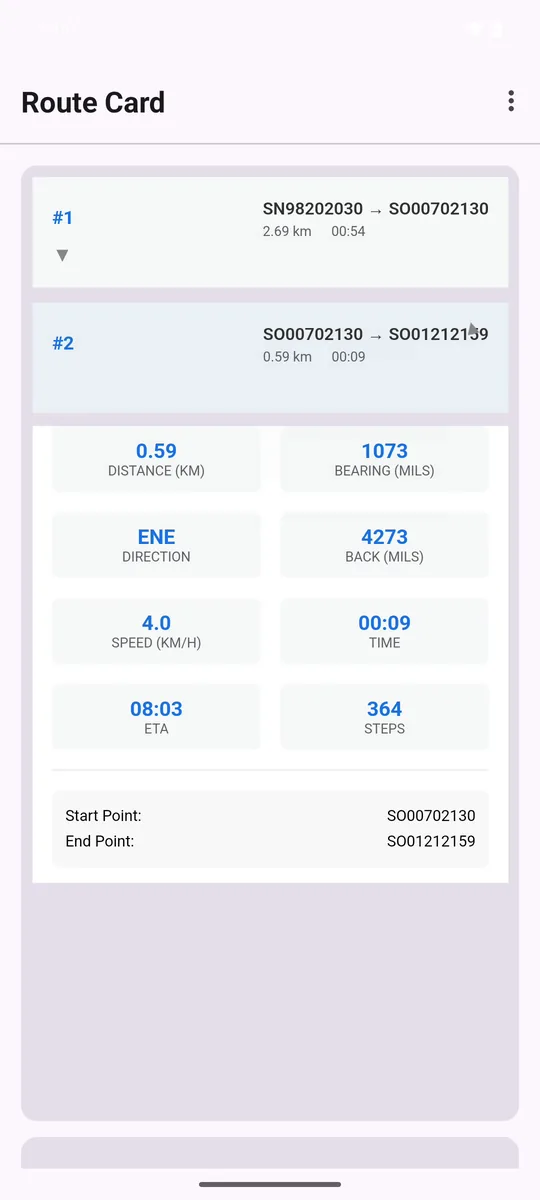
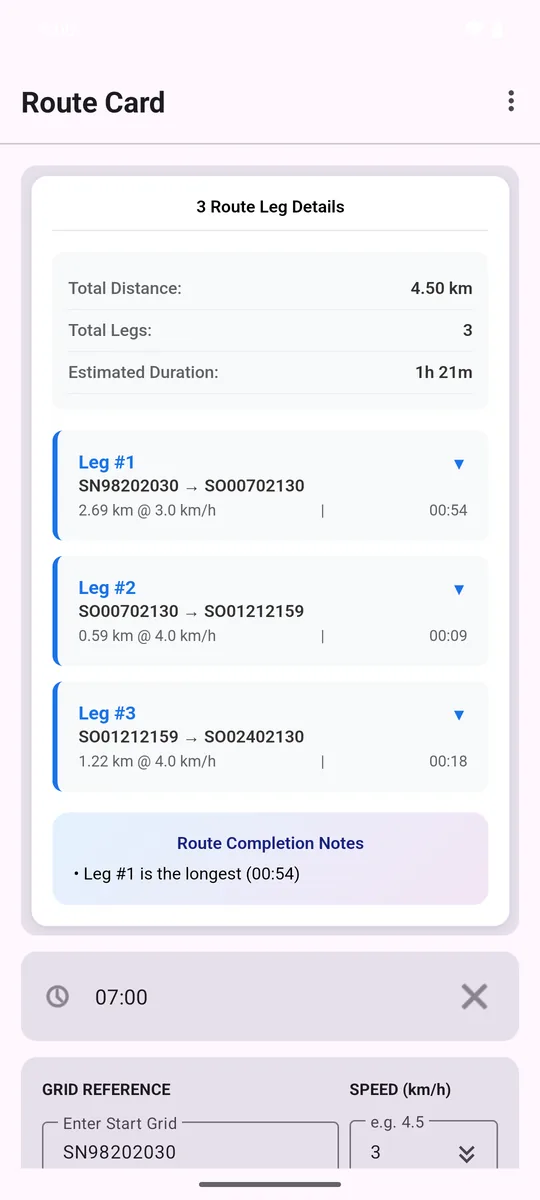
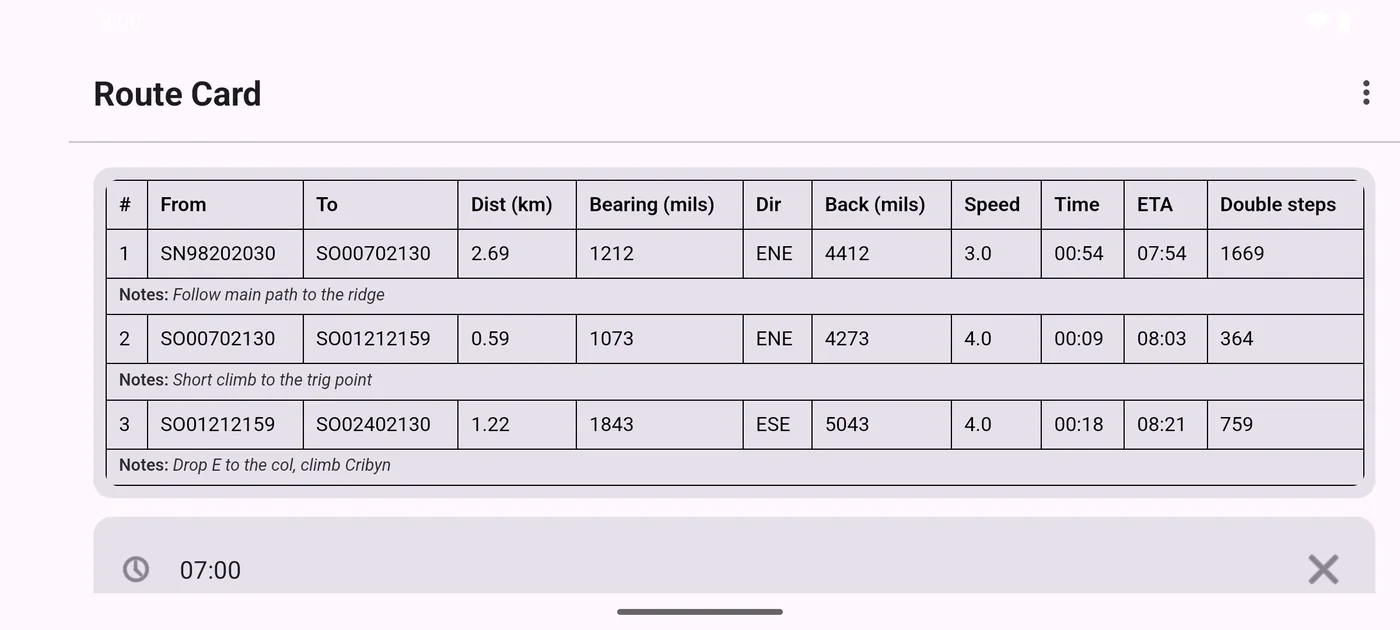
In Settings, open Route Card Display Style and choose Carousel, Table, Accordion or Summary + Detail. ▶ Watch this part (3:52)
Open Settings, then Route Card Display Style, and choose a layout. Go back to the main screen and tap Update to see it.
Use the night and tactical themes
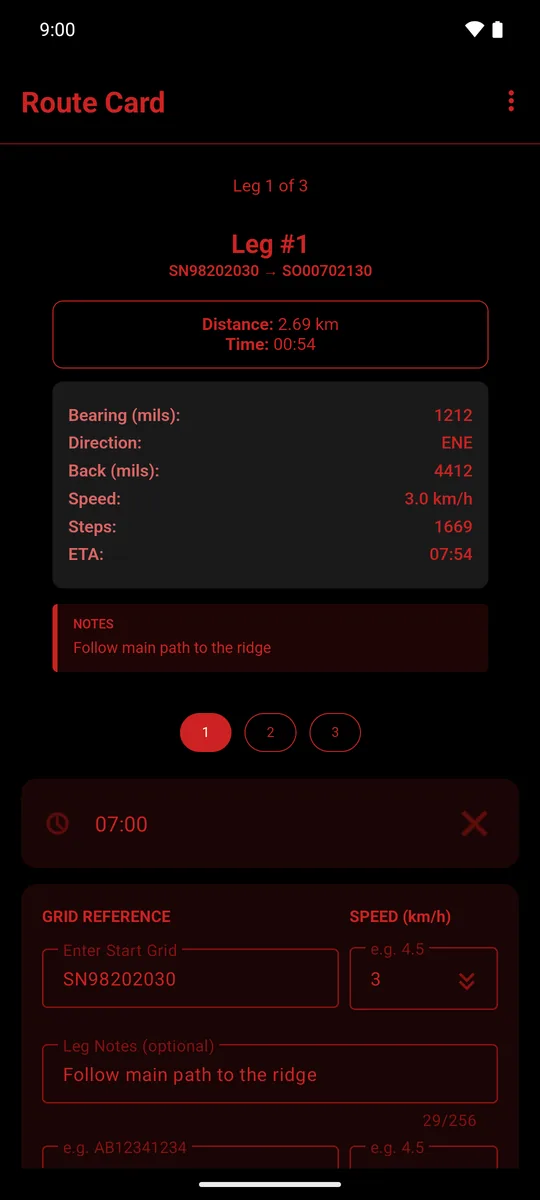
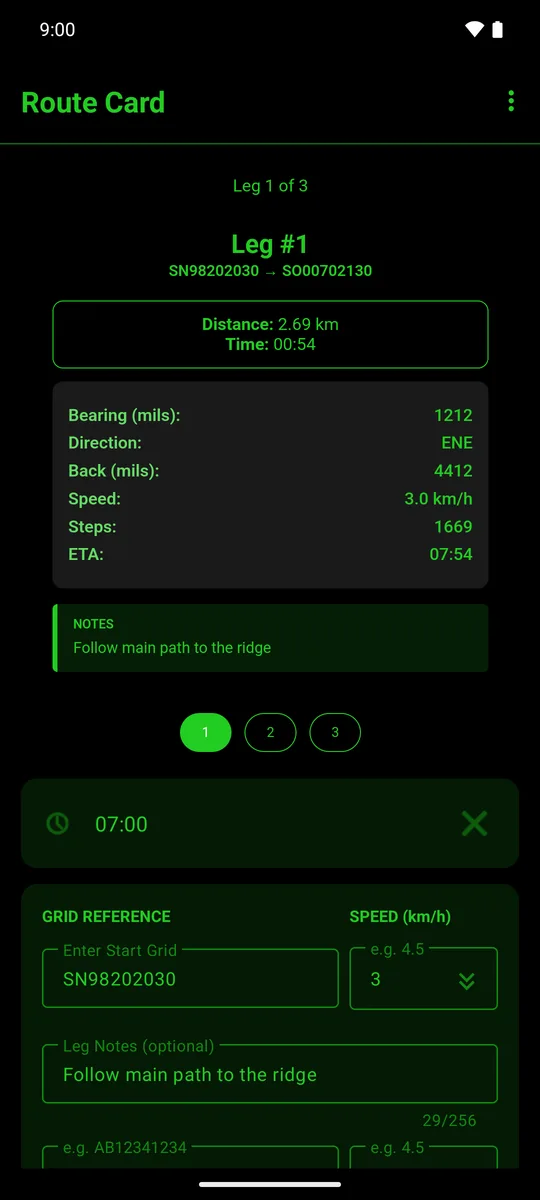
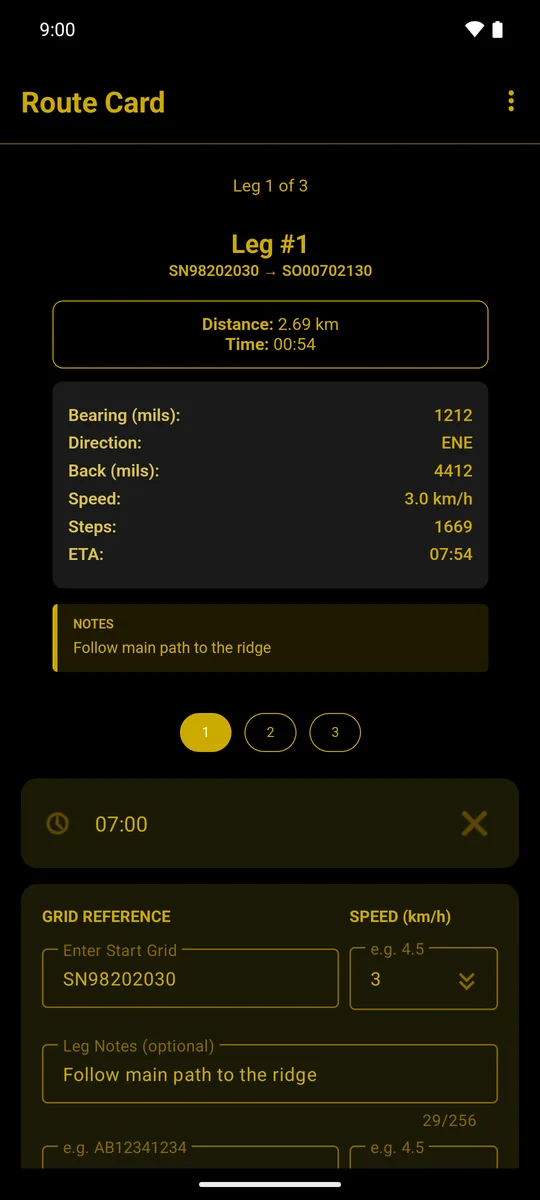
In Settings, open Display Theme and choose Default, Tactical Night, NVG Mode or Desert Tactical. ▶ Watch this part (4:40)
Open Settings, then Display Theme. The change is instant across the whole app. Choose Default to return to the standard look.
Choose which columns to show
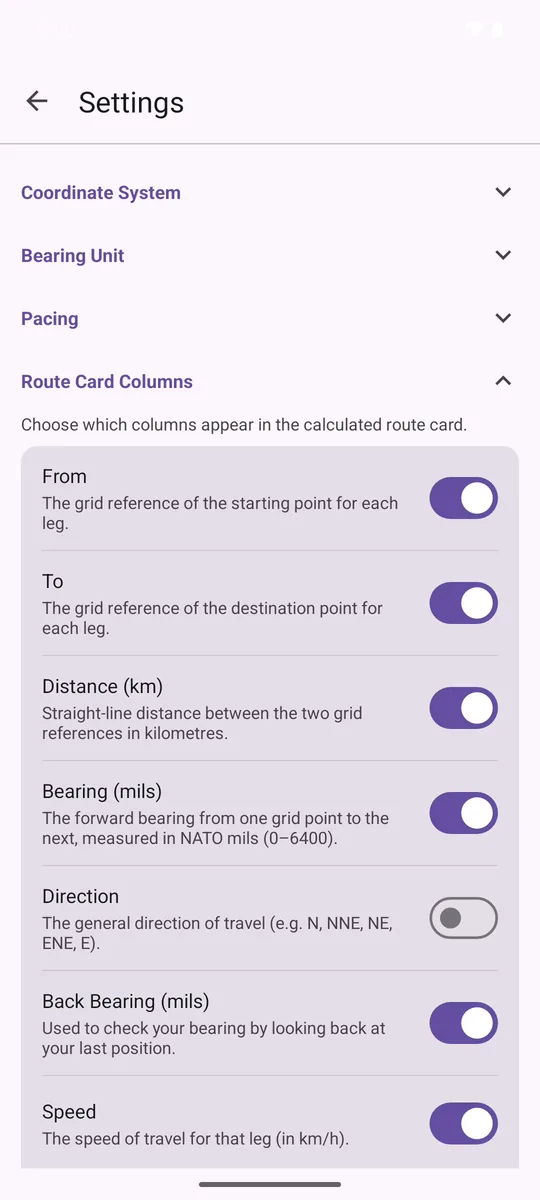
In Settings, open Route Card Columns and switch off any column you do not need, then tap Update. ▶ Watch this part (5:09)
Keep the card clean by hiding anything you don't use.
- Open Settings, then Route Card Columns.
- Switch off any column you don't need. If you don't pace count, for example, turn off Double Steps.
- Go back and tap Update. The column disappears from your route card. Switch it back on at any time.
Save and load routes (Route Card Pro)
With Route Card Pro, use Save Route in the menu to save your route card, and Load Route to open, rename or delete saved routes.
Saving routes is part of Route Card Pro, a one-time in-app purchase with no subscription. To upgrade, tap the three dots and choose Route Card Pro.
- To save, tap the three dots, then Save Route, then Save. The first time, you'll be asked to name the route. After that, Save updates it under the same name.
- To keep a copy under a different name, choose Save As… instead. If that name is already taken, you'll be asked before it's overwritten.
- To open a saved route, choose Load Route and tap the route you want. Its grids, speeds, notes and start time are all restored.
- In the saved routes list you can also Rename or Delete a route.
Start a new route
Tap Clear to wipe every row, speed, note and the start time. There is no undo. ▶ Watch this part (5:29)
Tap Clear at the bottom of the main screen to wipe every row, speed, note and the start time, ready for your next route.
Your settings (grid system, bearing unit, pacing count, display style, theme and columns) are kept.
Tips for using your route card
- It works fully offline. Plan and navigate with no signal. All calculations happen on your phone.
- Trust your back bearings. If visibility drops and you're unsure of your position, turn round, sight back along the back bearing and check you can identify your last waypoint.
- Report your ETAs. Set a start time and you'll always know when you're due at each point.
- Re-measure your pacing for different ground or loads, and update the count in Settings.
Route Card is a planning aid. Always carry a map and compass, and check your route against the ground.
Have a question that isn't covered here? See the Route Card FAQ or get in touch.